
Collect your V2Ray service values
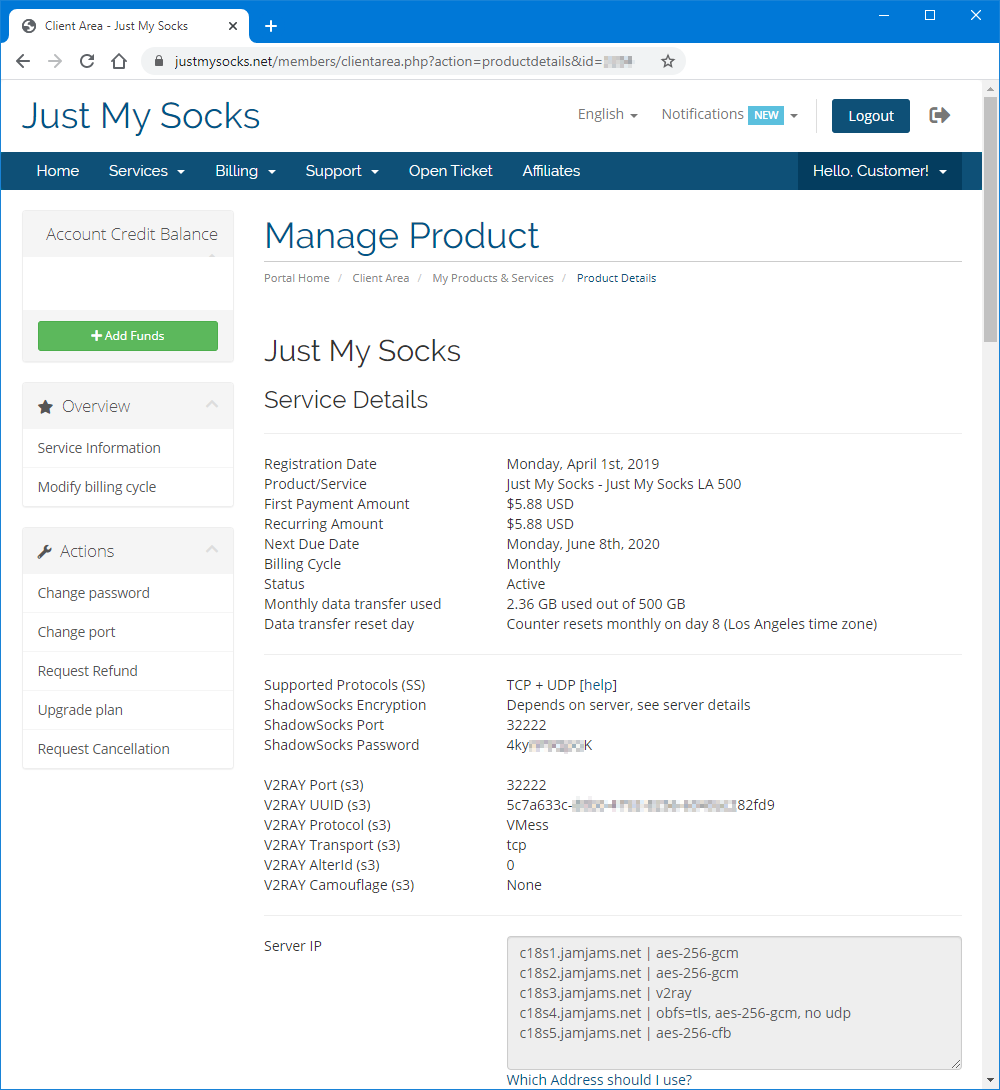
On Android, V2rayNG is a common manual client for Just My Socks V2Ray connections. Before opening the app, sign in to your Just My Socks account and open Services → My Services.
Choose the active service you want to use and keep its details page visible. You will need the server address, port, user ID or UUID, alter ID if shown, transport mode, TLS setting, and any other values attached to that V2Ray profile.
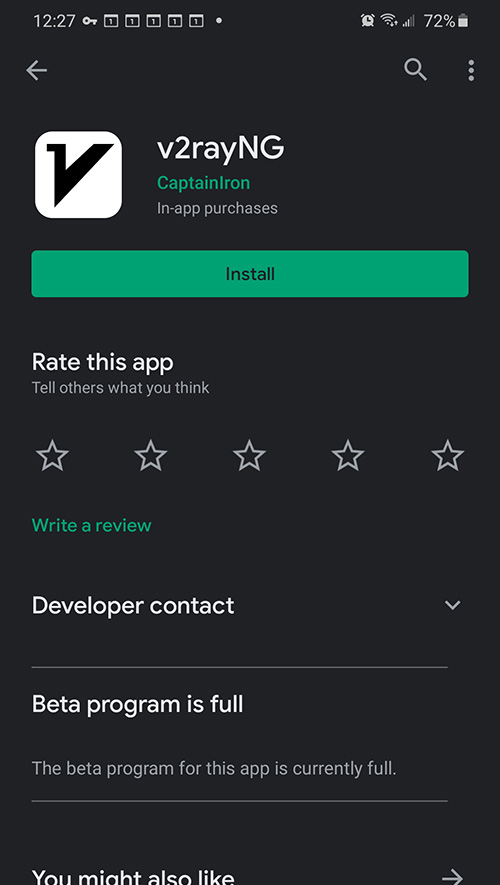
Install V2rayNG
Install V2rayNG from Google Play or from the project’s GitHub releases page: V2rayNG on Google Play or V2rayNG releases on GitHub.
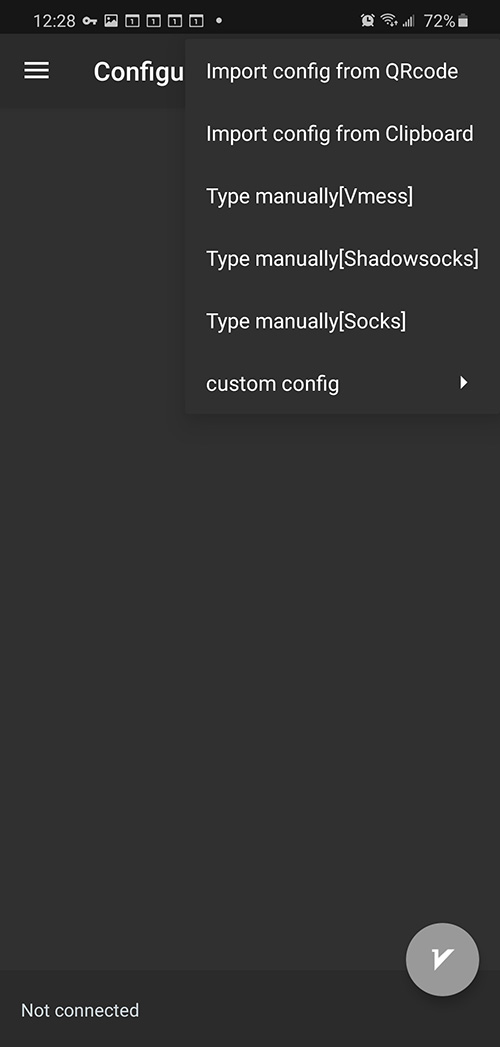
Create a manual VMess profile
Open V2rayNG and add a new profile with the manual VMess option.
Enter the values from the Just My Socks service details page. Use the remarks field for a name you can recognize later, such as the route location or plan name.
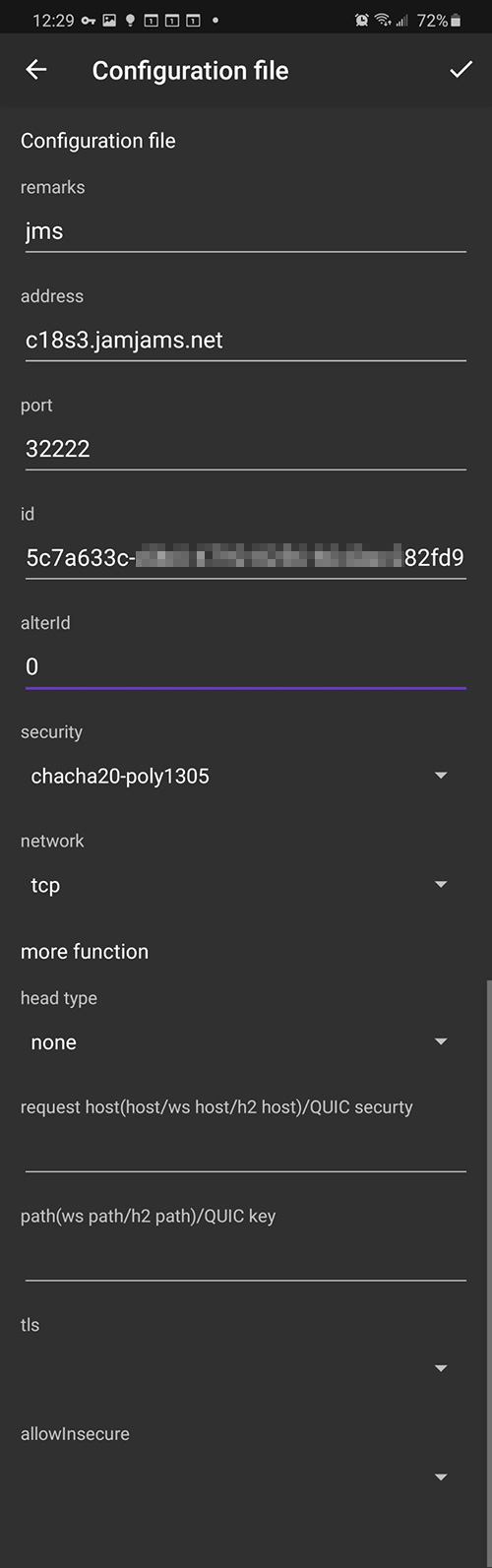
Pay close attention to transport and TLS. If the panel shows TCP+TLS, enable TLS and only set allowInsecure when the provider’s instructions require it. Server, port, ID, transport, and TLS all need to match the panel exactly.
Connect with V2rayNG
Save the profile, select it in V2rayNG, and start the connection.
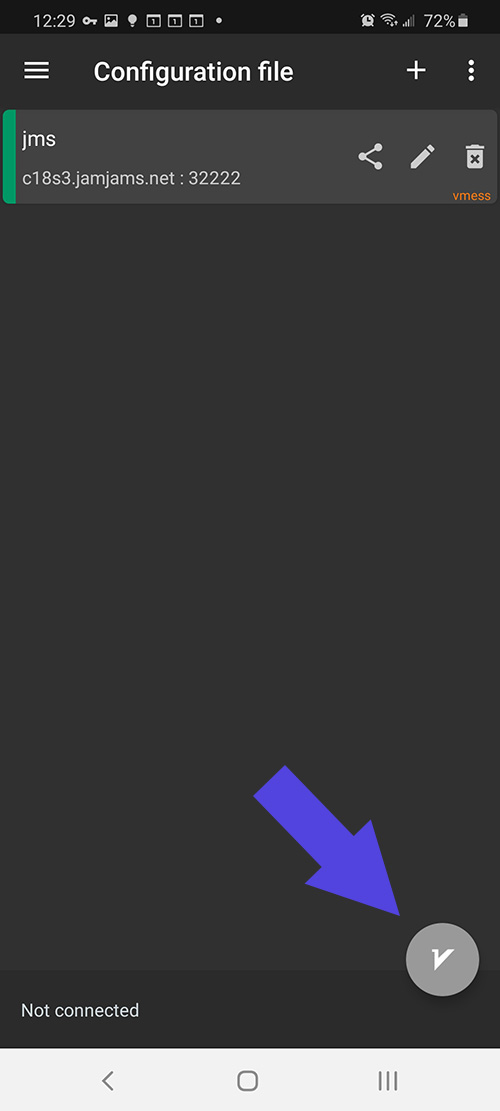
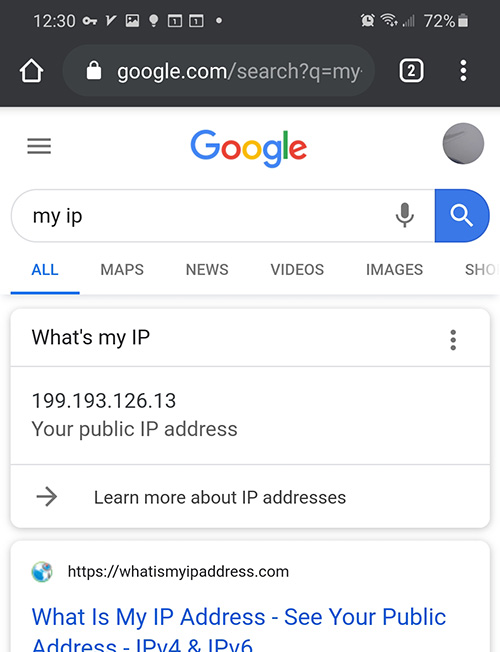
After V2rayNG connects, test a few websites or apps to confirm traffic is going through the selected Just My Socks route.
If Android still cannot connect, return to the service panel and compare every field one by one before changing clients or plans. Most failures come from a copied value, transport option, or TLS setting that does not match the account panel.