
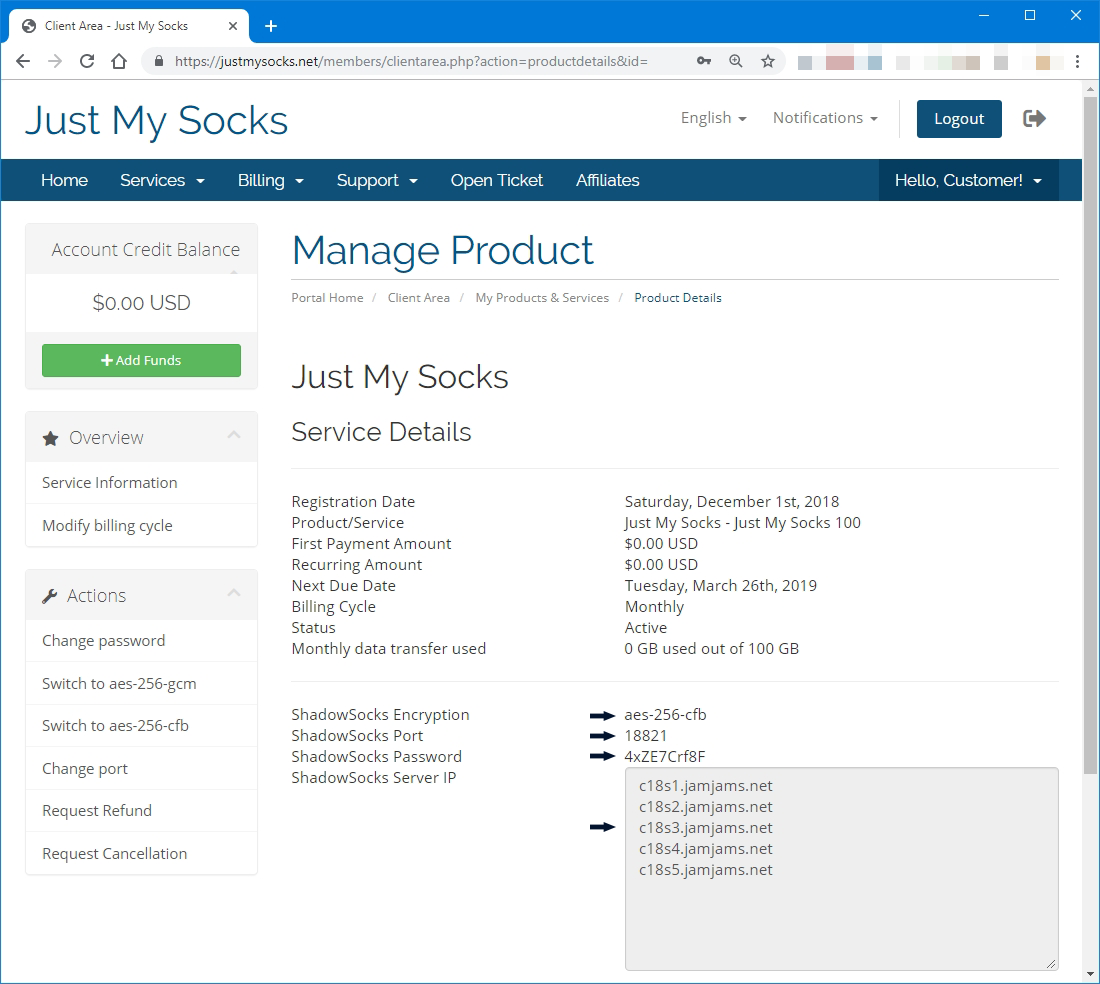
Open your Just My Socks service details
Before configuring Android, sign in to Just My Socks and open Services → My Services. Select the active service you want to use, then keep its details page open while you create the Android profile.
You will need the server address, port, password, encryption method, and any plugin or OBFS values shown for that service.
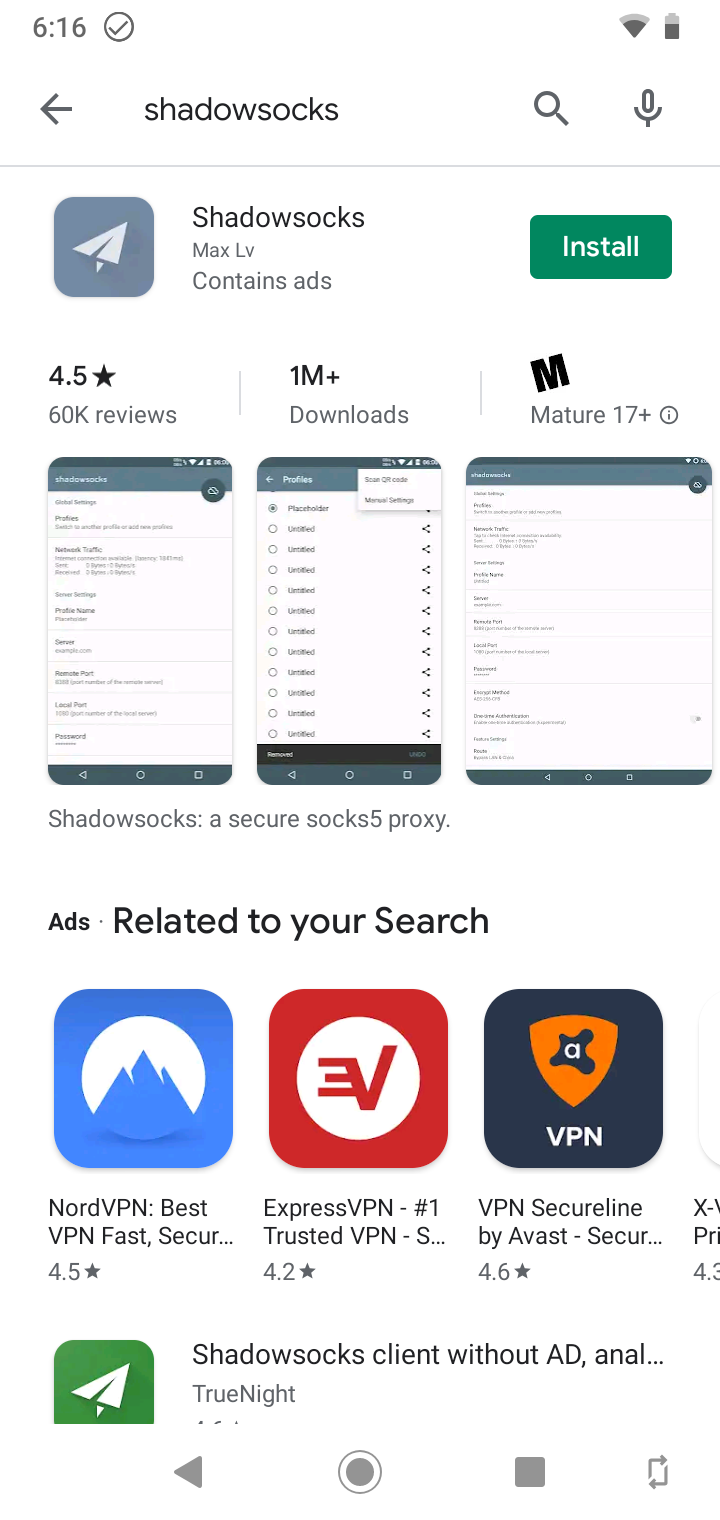
Install Shadowsocks and Simple Obfuscation
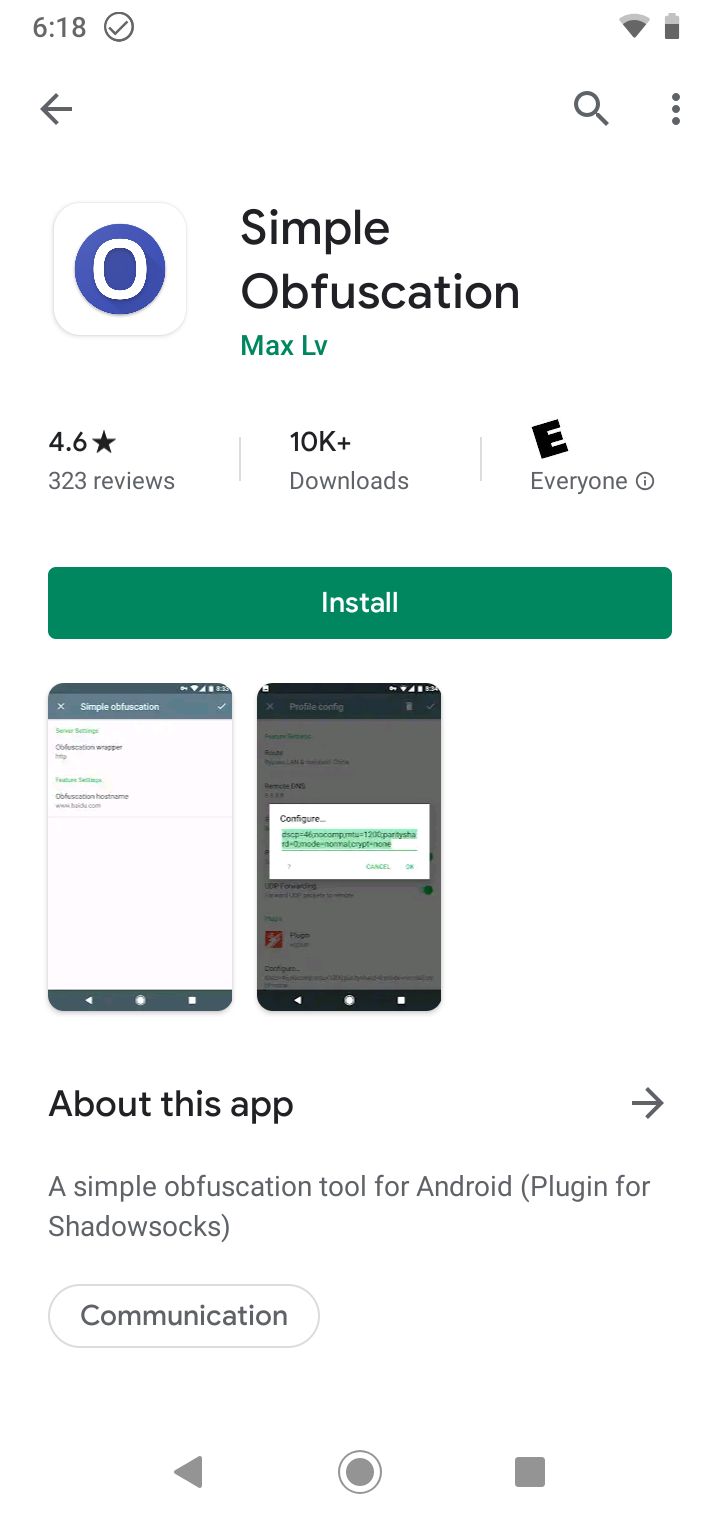
For Shadowsocks servers that use OBFS, Android needs two apps: the Shadowsocks client itself and the Simple Obfuscation plugin. Install both before creating the profile, because a profile that requires OBFS may not connect without the plugin.
Create a manual Shadowsocks profile
Open the Shadowsocks app after both apps are installed.
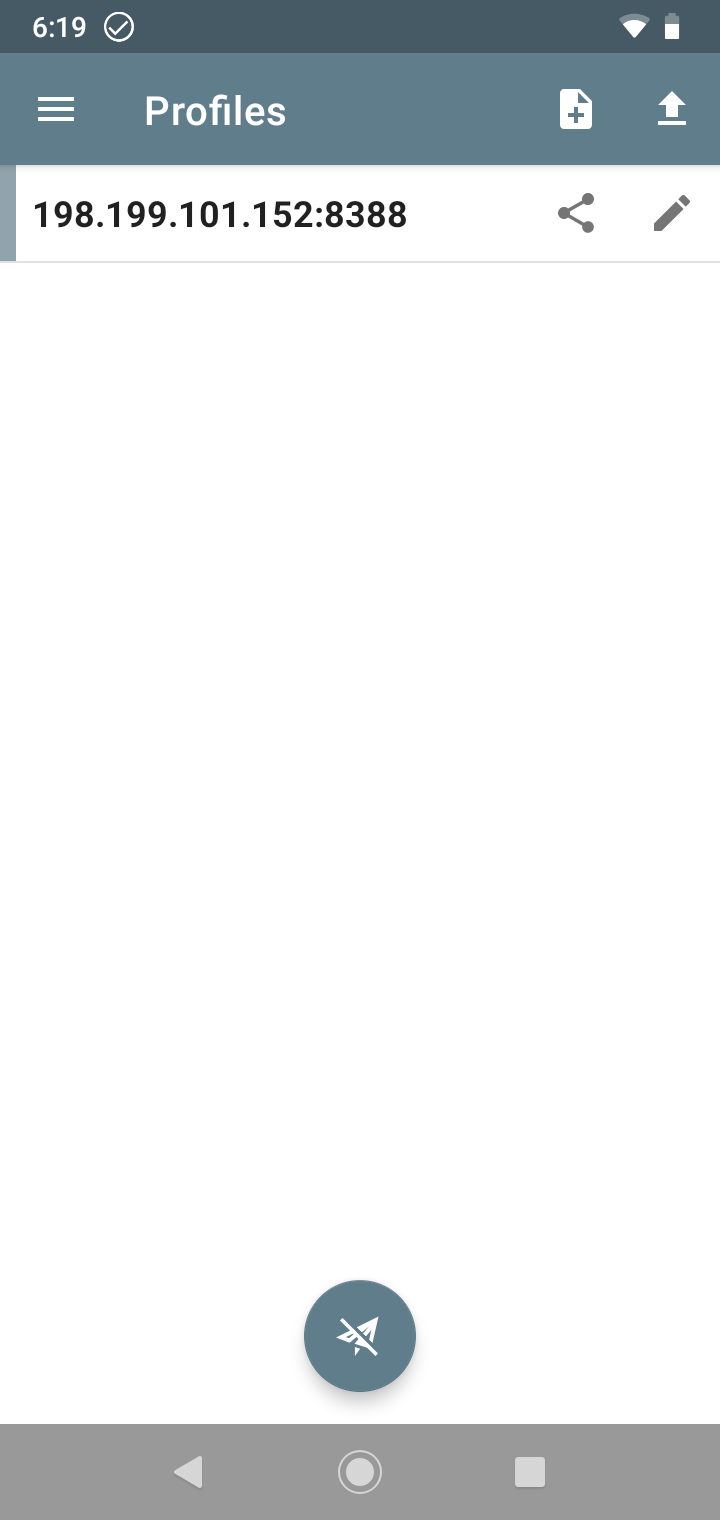
Tap the plus button, choose manual settings, and copy the server, port, password, and encryption method from the Just My Socks service page.
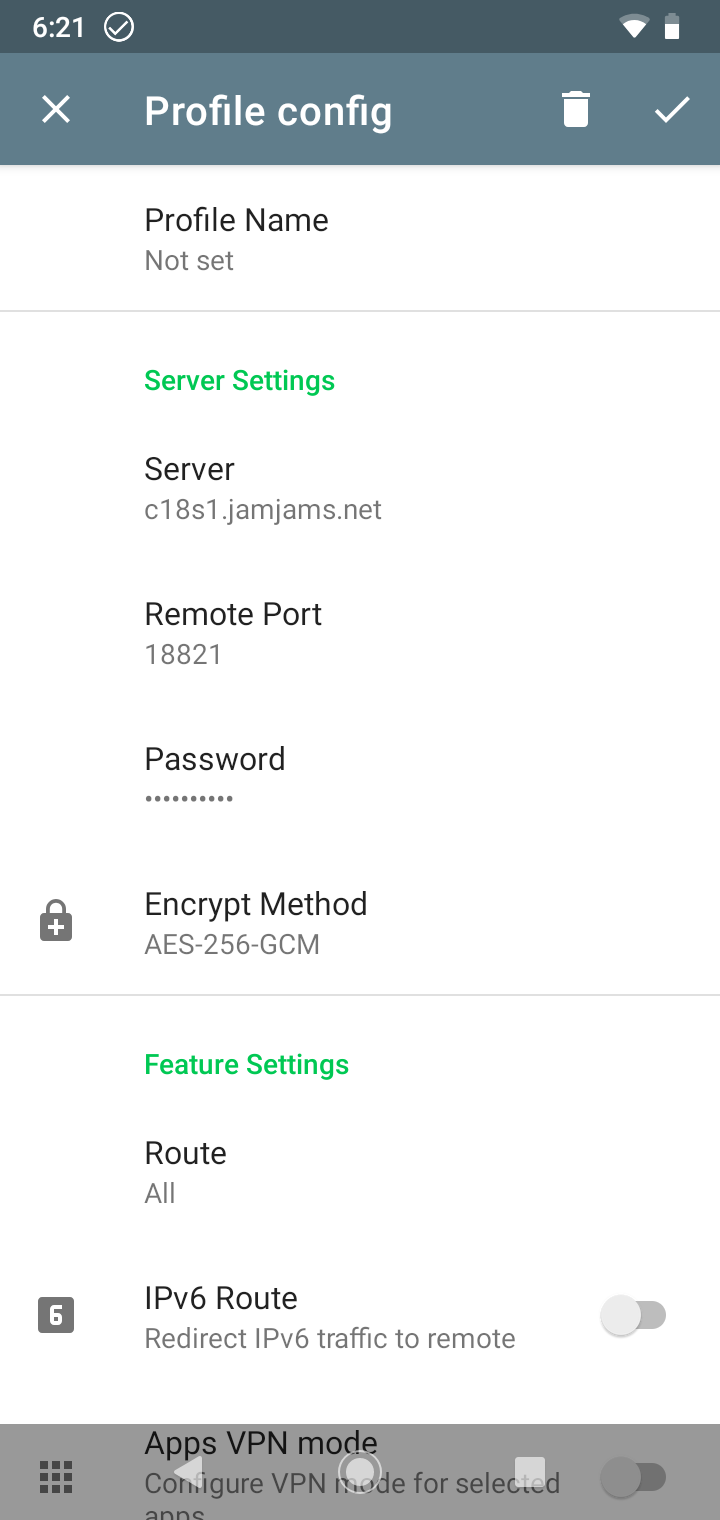
Add OBFS settings when required
If your service page shows OBFS or plugin settings, add them exactly as displayed. The important fields are usually the plugin name and plugin options.
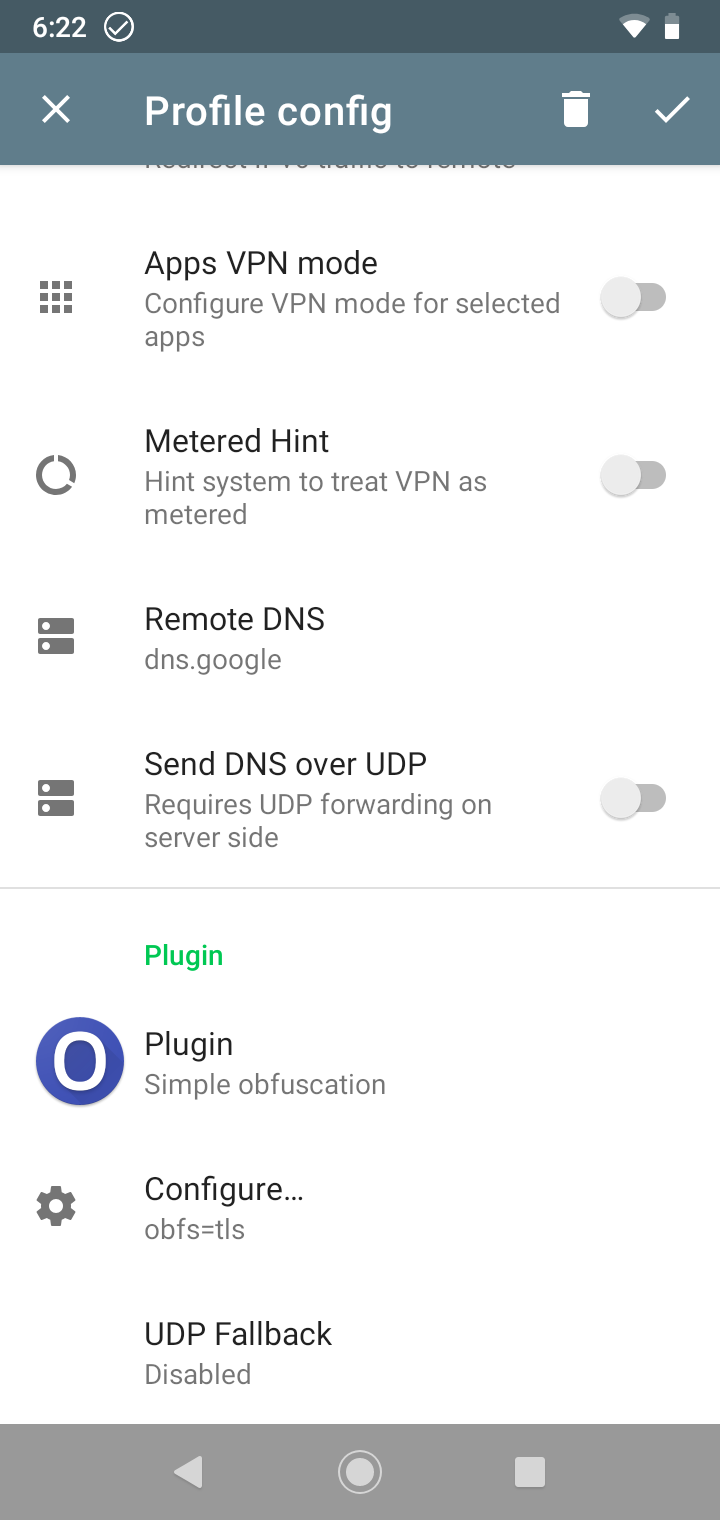
Do not invent OBFS values or reuse values from another server. These settings are tied to the selected Just My Socks service, and a small mismatch can keep the profile offline.
Select and enable the profile
After saving the profile, return to the main Shadowsocks screen and select the new profile. A green bar on the left marks the active selection.
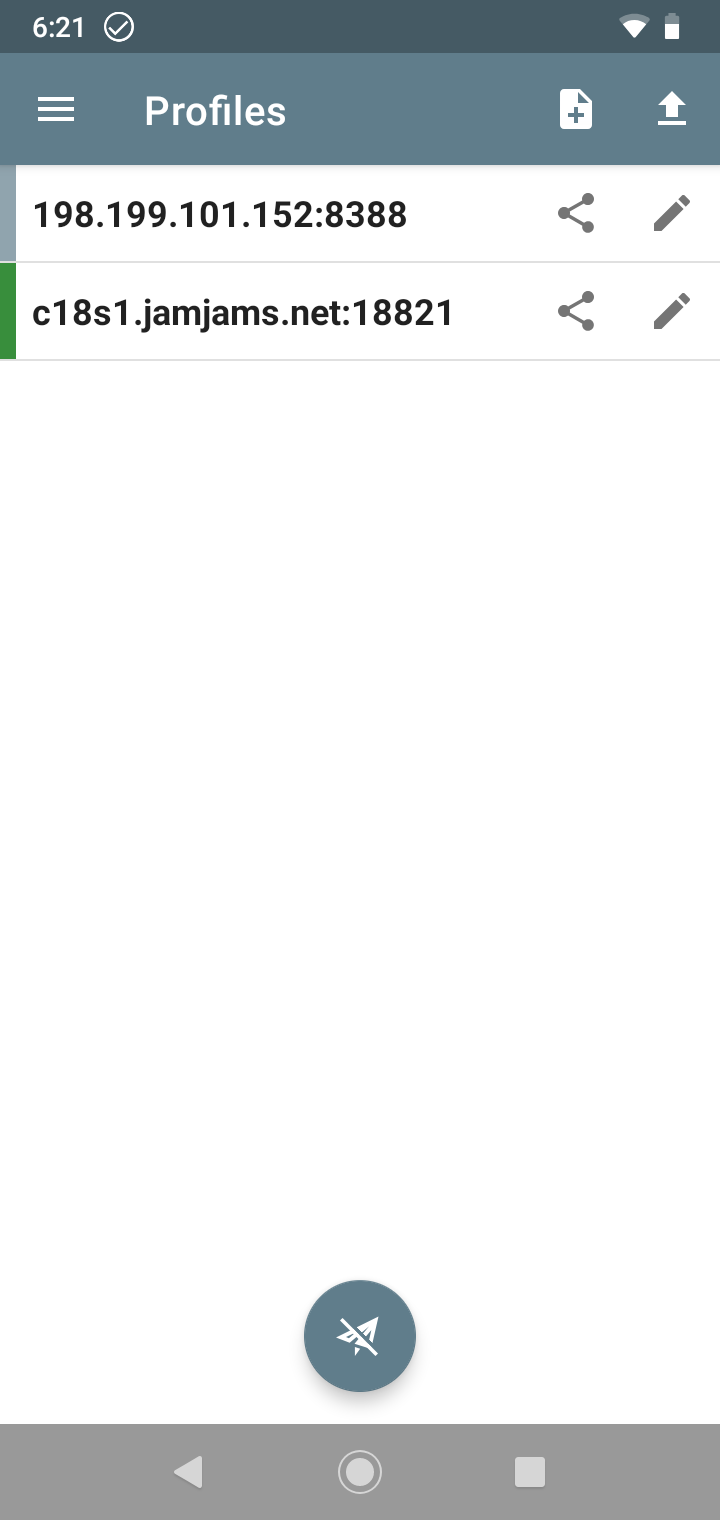
Tap the connection button to start Shadowsocks on Android.
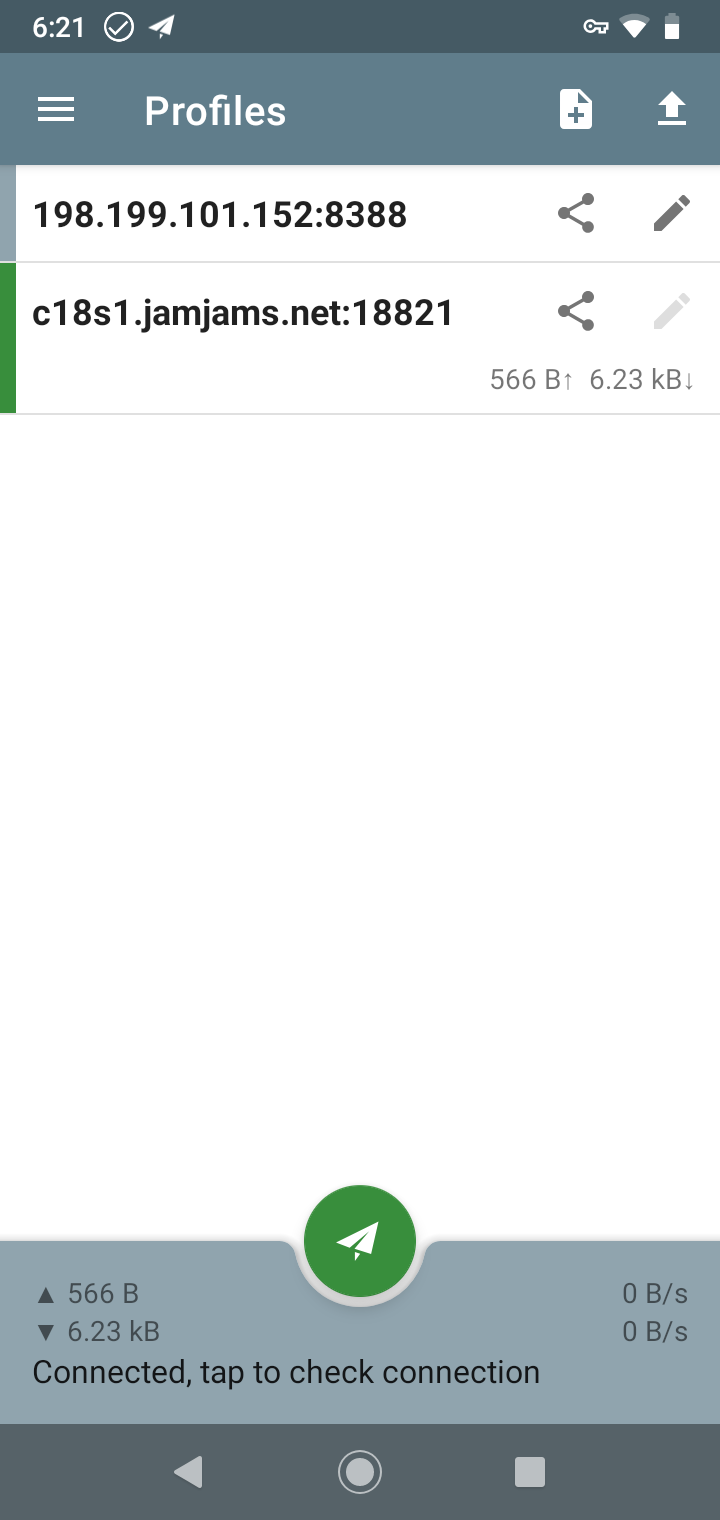
Once Android is connected, open a few websites or apps to confirm traffic is using the selected Just My Socks route. If it fails, compare the server, port, password, encryption method, plugin, and plugin options against the service panel again.